E-MailRelay
What is it?
E-MailRelay is a lightweight SMTP store-and-forward mail server with POP access to spooled messages. Store-and-forward operation is normally to a fixed smarthost but e-mail routing using DNS MX lookups can also be configured. It can be used as a personal internet mail server using SpamAssassin spam filtering and DNSBL connection blocking, with incoming e-mail delivered to maildir mailboxes. External scripts can be used for address validation and for processing e-mail messages as they are received.
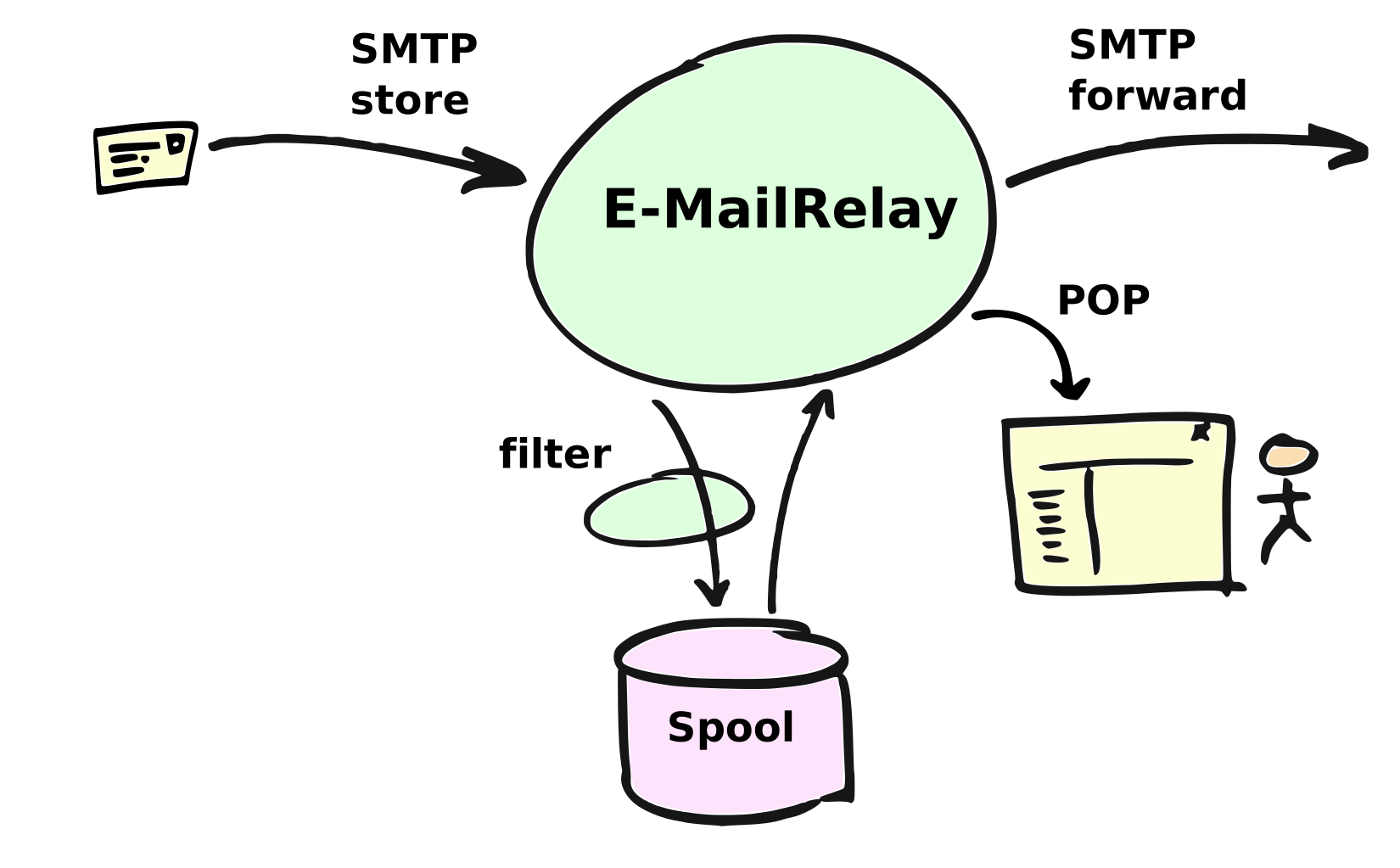
E-MailRelay runs as a single process using the same non-blocking i/o model as Squid and nginx giving excellent scalability and resource usage.
The code has few dependencies on third-party libraries or run-time environments so it is easy to build and install.
E-MailRelay is designed to be policy-free, so that you can implement your own policies for message retries, bounces, local mailbox delivery, spam filtering etc. through external scripts.

Basic operation
E-MailRelay can be run straight from the command-line, and on Windows you can run emailrelay.exe or emailrelay-textmode.exe from the zip file without going through the installation process.
To use E-MailRelay in store-and-forward mode use the --as-server option to
start the storage daemon in the background, and then do delivery of spooled
messages by running with --as-client.
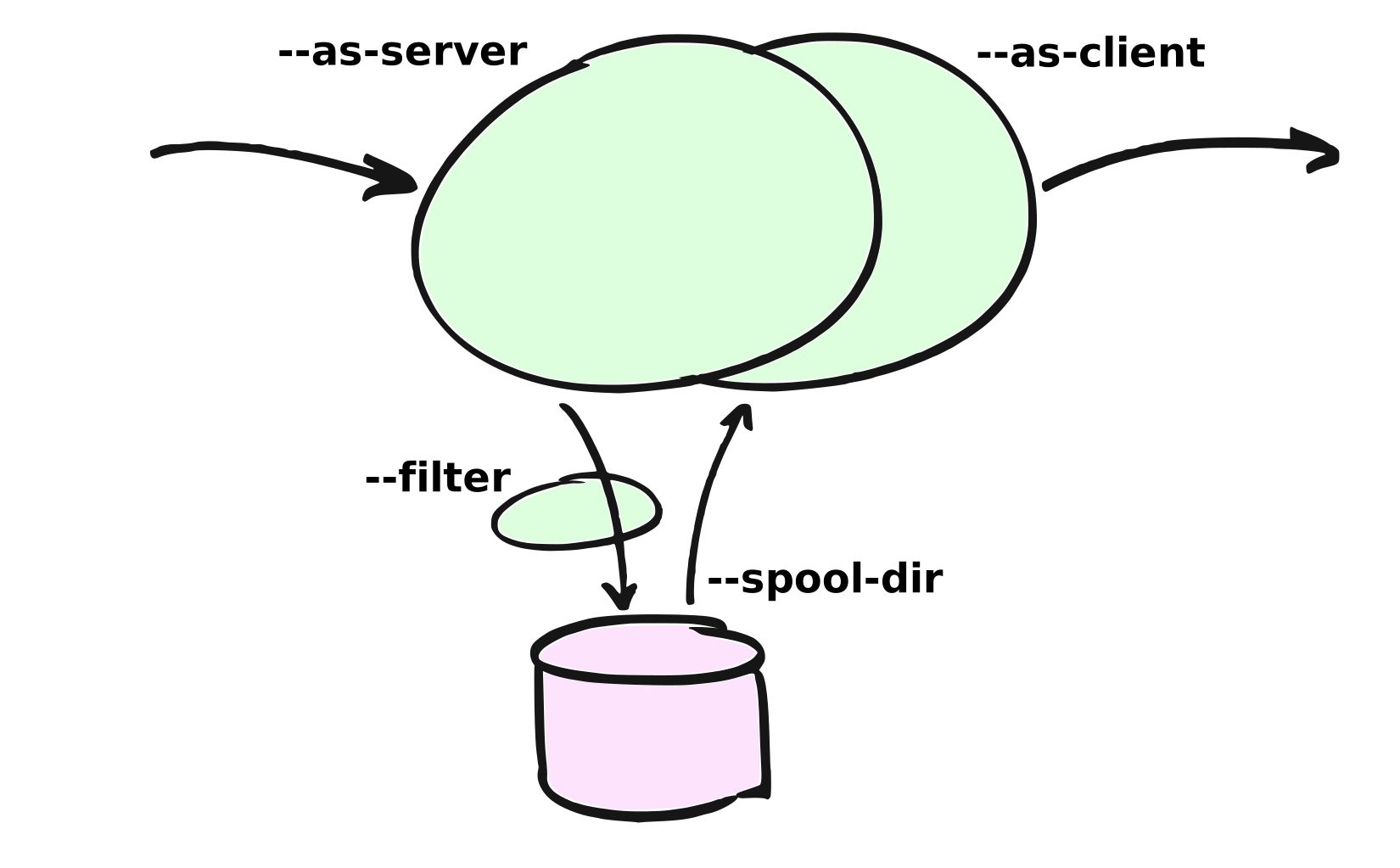
For example, to start a storage daemon in the background listening on port 10025 use a command like this:
emailrelay --as-server --port 10025 --spool-dir /tmp
On Windows use c:/temp for testing, rather than /tmp.
Or to run it in the foreground:
emailrelay --log --no-daemon --port 10025 --spool-dir /tmp
And then to forward the spooled mail to smtp.example.com run something like this:
emailrelay --as-client smtp.example.com:25 --spool-dir /tmp
To forward continuously you can add the --poll and --forward-to options to
the server command-line:
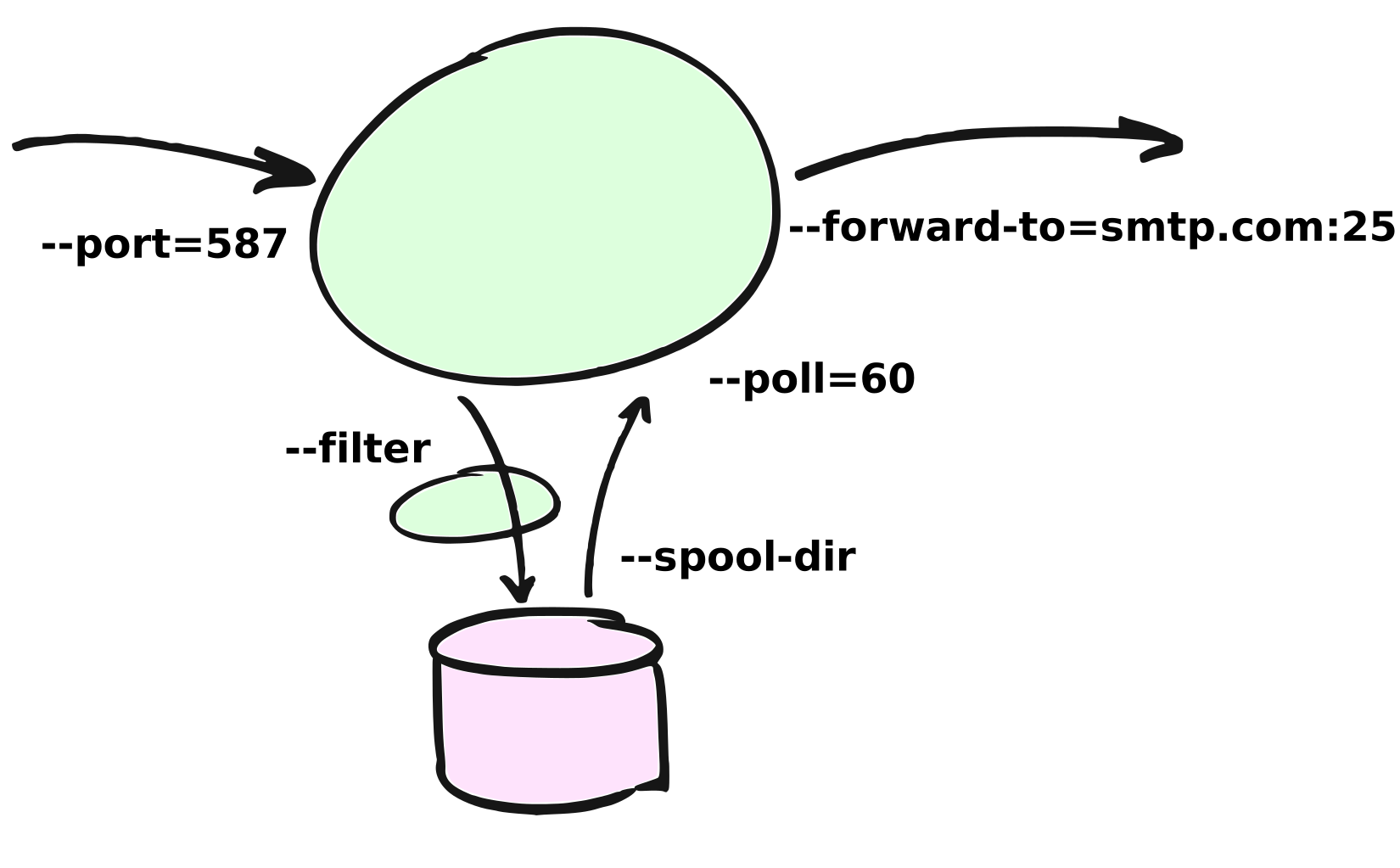
For example, this starts a server that also forwards spooled-up e-mail every minute:
emailrelay --as-server --poll 60 --forward-to smtp.example.com:25
Or for a server that forwards each message as soon as it has been received, you
can use --forward-on-disconnect:
emailrelay --as-server --forward-on-disconnect --forward-to smtp.example.com:25
To edit or filter e-mail as it passes through the server specify your filter
program with the --filter option, something like this:
emailrelay --as-server --filter /tmp/set-from.js
Look for example filter scripts in the examples directory.
E-MailRelay can also be used as a personal internet mail server:
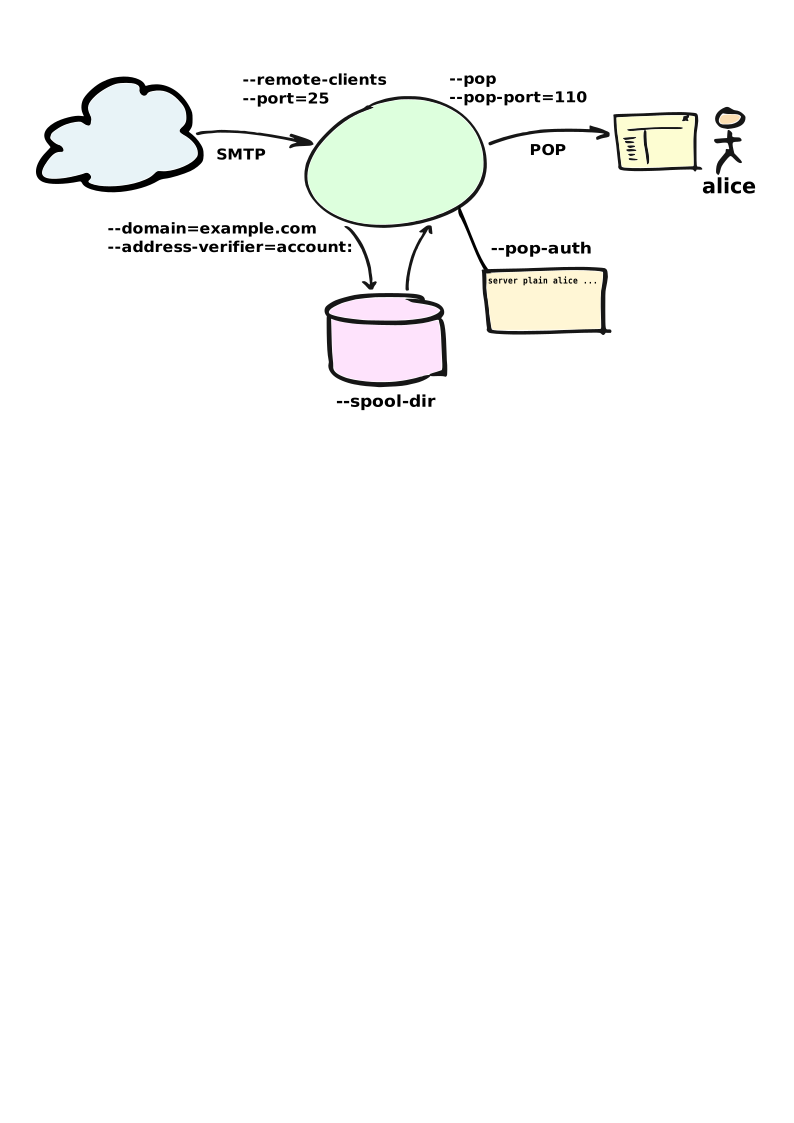
Use --remote-clients (-r) to allow connections from outside the local
network, define your domain name with --domain and use an address verifier as
a first line of defense against spammers:
emailrelay --as-server -v -r --domain=example.com --address-verifier=account:
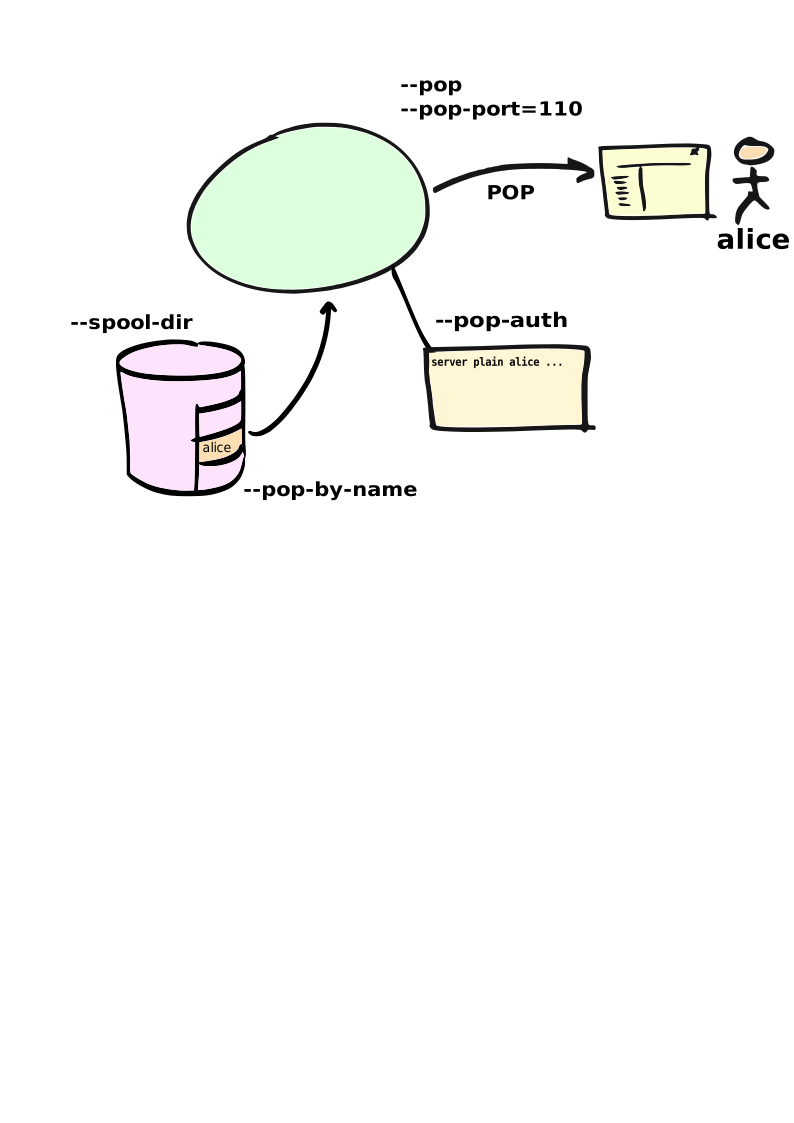
Then enable POP access to the incoming e-mails with --pop, --pop-port and
--pop-auth:
emailrelay ... --pop --pop-port 10110 --pop-auth /etc/emailrelay.auth
Set up the POP account with a user-id and password in the --pop-auth secrets
file. The secrets file should contain a single line of text like this:
server plain <userid> <password>
For more information on the command-line options refer to the reference guide or run:
emailrelay --help --verbose
Configuration
After a full installation the E-MailRelay server will normally be started up automatically when the machine boots up.
On Unix-like systems the server will read its configuration settings from a file /etc/emailrelay.conf.
On Windows E-MailRelay typically runs as a Windows Service and it reads its configuration from the startup batch file emailrelay-start.bat and/or the configuration file emailrelay.cfg in the ProgramData/E-MailRelay folder. (If you can't find this folder look for the E-MailRelay link in the Program Files/E-MailRelay folder and then right-click and "open file location".)
You can change the E-MailRelay server configuration by editing the configuration file or startup batch file directly and then restarting the server. Or you can use the E-MailRelay configuration GUI if it is available.
In many cases E-MailRelay will need to be configured with user-ids and
passwords. For example, if e-mail is being forwarded to a smarthost for onward
routing then you will need to supply the user-id and password for your account
on the smarthost. These details must be entered into a secrets file and then
one of --server-auth, --client-auth or --pop-auth must be used to point to
the file.
The E-MailRelay reference document describes the format of the secrets file.
Logging
E-MailRelay is normally installed so that it logs its activity to a log file, but it can also send logging information to syslog on Unix systems or the to the Event Viewer on Windows.
Logging is configured with options like --log, --log-file, --as-server and
--syslog, so check these in the configuration file and/or startup batch file.
For more verbose logging add the --verbose option. This is a good idea when
setting up or trouble-shooting your E-MailRelay configuration.
Failures and retries
If e-mail messages cannot be forwarded by the E-MailRelay system then the envelope files in the spool directory are given a .bad suffix. The reason for the failure will be recorded in the envelope file itself.
You should check for .bad envelope files in the E-MailRelay spool directory
from time to time. If you want a failed message to be retried then just remove
the .bad filename suffix from the envelope. Use regular polling (e.g.
--poll 60) to make sure that renamed messages get picked up and forwarded
in a timely manner.
To retry failed messages automatically run a script periodically that renames the .bad envelope files.
Open mail servers
If you are running E-MailRelay as an internet mail server then you need to be careful about abuse by spammers and bot-nets. You will also need to be sure that incoming e-mail messages are never automatically routed back out to the internet because that will definitely attract abuse.
By default an E-MailRelay server will only accept connections from local network
addresses, so for an internet mail server you will need to add the
--remote-clients option. When you add --remote-clients you should be
sure that you have a firewall that blocks connections to any other ports that
E-MailRelay might have open, or use the --interface option to limit their
scope.
A good first step in limiting abuse is to use an address verifier that checks that e-mails are correctly addressed to you. You can use the built-in address verifier called account: to do this or you can write your own verifier script.
emailrelay --as-server --remote-clients --address-verifier=account: --domain=mydomain.com
Refer to the Address verifiers section in the E-MailRelay reference document for more details.
If you want to run an internet mail server that is not open to everyone then you can require that remote users authenticate themselves. Do this with a secrets file containing a user-id and password for every remote user, something like this:
server plain user1 password1
server plain user2 password2
And then use --server-auth to point to the file:
emailrelay --as-server --remote-clients --server-auth=/etc/emailrelay.auth
Refer to the Authentication section in the E-MailRelay reference document for more details.
Running as a POP server
E-MailRelay can run as a POP server so that an e-mail client program can retrieve messages from the E-MailRelay spool directory.
To allow POP access use the --pop and --pop-auth command-line options,
something like this:
emailrelay --as-server --pop --pop-auth=/etc/pop.auth
You will need to create the --pop-auth secrets file. It should contain one
line of text that gives the username and password that your e-mail client will
use when connecting to E-MailRelay, for example:
server plain user1 password1
If you are using POP to view a spool directory that is also being used for
e-mail forwarding then you should use --pop-no-delete.
If using more than one e-mail client program then you might want to make
independent copies of your e-mails for each client. Use a --filter program to
copy the e-mail files into sub-directories of the main spool directory and then
use --pop-by-name so that each e-mail client accesses its own sub-directory
according to which account name it used when authenticating. The filter can be
an external program, or just use the built-in copy: filter.
IMAP
E-MailRelay does not support the IMAP protocol directly but a simple filter script can be used to move e-mails into a maildir directory and an IMAP server such as dovecot can be used to serve them from there.
It is normally sufficient for a filter script to just move the E-MailRelay content file straight into the mailbox cur directory, delete the corresponding envelope file and then exit with an exit code of 100. The built-in deliver: filter can be used to do this.
Forwarding on demand
If you are using E-MailRelay on a Linux/Unix system to store and forward e-mail over an intermittent link to the internet such as dial-up or wireless networking, then you might need to arrange for E-MailRelay to be notified when it can start forwarding e-mail.
You should find that there are special directories where you can install your own hook scripts that are called whenever a dial-up or wireless network connection is established. For dial-up this might be /etc/ppp/ip-up.d, and for wireless /etc/network/if-up.d.
Just create a two-line script like this in the relevant directory:
#!/bin/sh
echo forward | /usr/bin/nc -q 1 -w 1 127.0.0.1 10026 > /dev/null
Make the script executable using chmod +x and install netcat if necessary.
Then enable the E-MailRelay admin interface on port 10026 with these lines in the configuration file:
admin 10026
interface admin=127.0.0.1
Rate limiting
If you need to slow the rate at which e-mails are forwarded you can use a
--client-filter program to introduce a delay. On Windows this JavaScript
filter program would give you a delay of a minute:
WScript.Sleep( 60000 ) ;
WScript.Quit( 0 ) ;
However, this can cause timeouts at the server, so a better approach is to use
--client-filter exit:102 so that only one e-mail message is forwarded on each
polling cycle, and then use --poll 60 to limit it to one e-mail per minute.
SpamAssassin
The E-MailRelay server can use SpamAssassin to mark or reject potential spam.
It's easiest to run SpamAssassin's spamd program in the background and let E-MailRelay send incoming messages to it over the local network.
The built-in spam-edit: filter is used to pass e-mail messages to spamd, which normally listens on port 783:
emailrelay --as-server --filter=spam-edit:127.0.0.1:783
If SpamAssassin detects a message is spam it will edit it into a spam report with the original e-mail moved into an attachment.
Alternatively use the spam: filter if spam e-mails should be rejected outright:
emailrelay --as-server --filter=spam:127.0.0.1:783
Google mail
To send mail via Google mail's SMTP gateway you will need to obtain a new application password from Google: log in to your Google account and look for the account's security settings and then app passwords. Create the password for E-MailRelay selecting an application type other.
Then create a client secrets file for E-MailRelay containing your account name and the new application password. You may already have this file on Windows as C:\ProgramData\E-MailRelay\emailrelay.auth.
You should edit the secrets file to contain one client line, something like this:
client plain myname@gmail.com myapppassword
Then change the E-MailRelay configuration file to refer to your secrets file by
using the --client-auth option.
Also set the --as-proxy or --forward-to option to smtp.gmail.com:587 and
add --client-tls to enable TLS encryption.
On Windows your settings might look something like this in the emailrelay.cfg configuration file:
forward-to smtp.gmail.com:587
client-tls
client-auth C:/ProgramData/E-MailRelay/emailrelay.auth
Or in the Windows startup batch file (emailrelay-start.bat) these settings should all go on one line:
start ... emailrelay --as-proxy=smtp.gmail.com:587 --client-tls --client-auth=C:/ProgramData/E-MailRelay/emailrelay.auth ...
Microsoft 365
E-MailRelay can forward e-mails to a Microsoft 365 Exchange server for onward
delivery. Set the --forward-to address to smtp.office365.com:587, and enable
authentication and TLS by using the --client-auth and --client-tls options,
or add these lines to the emailrelay.cfg configuration file:
forward-to smtp.office365.com:587
client-tls
client-auth C:/ProgramData/E-MailRelay/emailrelay.auth
The secrets file (emailrelay.auth) should contain the credentials for logging in to the Microsoft server, but because Microsoft's policy is to limit the use of passwords these credentials will normally have to be OAUTH tokens:
client oauth:b me@mydomain.onmicrosoft.com dXNlcj1ncmFlbWVAZ3JhZW1ld2Fsa2VyLm9ub...
Configure your Microsoft 365 Exchange server's 'mail flow' to allow SMTP AUTH and register E-MailRelay as an authenticating application, and then obtain a fresh OAUTH token to go into the E-MailRelay secrets file before forwarding e-mails.
Use the scripts on GitHub from DATA-Systems GmbH to help with this. You will need to edit the update script to set your application id etc.
Connection tunnelling
E-MailRelay can send mail out via a SOCKS v4 proxy, which makes it easy to route your mail through an encrypted tunnel created by ssh -N -D or via the Tor anonymising network.
For example, this will run an E-MailRelay proxy on port 587 that routes via a local Tor server on port 9050 to the mail server at smtp.example.com:
emailrelay --port 587 --as-proxy=smtp.example.com:25@localhost:9050 --domain=anon.net --anonymous --connection-timeout=300
Blocklists and dynamic firewalls
E-MailRelay can consult with remote DNSBL blocklist servers in order to block incoming connections from known spammers. For example:
emailrelay -r --dnsbl=zen.spamhaus.org,bl.mailspike.net ...
Refer to the documentation of the --dnsbl option for more details.
It is also possible to integrate E-MailRelay with intrusion detection systems
such as fail2ban that monitor log files and dynamically modify your iptables
firewall. Use E-MailRelay's --log-format address command-line option so that
the remote IP addresses are logged and made visible to fail2ban.
Bcc handling
E-MailRelay transfers e-mail messages without changing their content in any way, other than by adding a Received header. In particular, if a message contains a Bcc: header when it is submitted to the E-MailRelay server it will have the same Bcc: header when forwarded.
It is normally the responsibility of the program that submits an e-mail message to submit it separately for each BCC recipient, removing the Bcc: header from the message content or changing it to contain only the 'current' recipient. If this is not done, perhaps through misconfiguration of the e-mail user agent program, then BCC recipients may be visible to the To and Cc message recipients.
An E-MailRelay --filter script can be used to reject messages with incorrect
Bcc: headers, and an example script is included.
Advanced set-up
As an example of an advanced E-MailRelay setup consider the following command-line, split onto multiple lines for readability:
emailrelay
--log --verbose --log-time --log-format=unit,network
--close-stderr --syslog
--pid-file @app/emailrelay.pid
--user root

--in-spool-dir @app/in
--in-port 25
--in-domain example.com
--in-address-verifier account:
--in-dnsbl dnsbl.example.com
--in-filter spam-edit:127.0.0.1:783
--in-filter deliver:
--in-server-smtp-config +chunking,+smtputf8
--in-size 100000000
--in-pop
--in-pop-port 110
--in-pop-auth pam:
--in-pop-by-name

--out-spool-dir @app/out
--out-port 587
--out-forward-on-disconnect
--out-forward-to-some
--out-poll 60
--out-address-verifier account:check
--out-delivery-dir @app/in
--out-filter msgid:
--out-filter deliver:
--out-filter split:
--out-client-filter mx:
--out-forward-to 127.0.0.1:588
--out-domain example.com
--out-poll-run retry:5

--other-spool-dir @app/other
--other-port 588
--other-interface 127.0.0.1
--other-client-tls
--other-client-auth plain:YWxpY2VAZ21haWwuY29t:UGFzc3cwcmQ
--other-forward-to smtp.gmail.com:587
--other-poll 3600
This is a three-in-one configuration so there are effectively three E-MailRelay servers running in one process, named in, out and other.
The in server is an internet-facing e-mail server with delivery to individual mailboxes that can be accessed via POP. The account: verifier checks the addressees in the incoming e-mails against the list of accounts on the local machine and against the given domain name; the IP address of the network connection is checked against a DNSBL database; SpamAssassin is used to identify spam; and Linux PAM is used for POP authentication.
The out server is a routing MTA that sends outgoing e-mail messages directly to destination servers. The filter makes copies as necessary so that each e-mail message goes to just one domain. The client filter uses DNS MX queries against the local system's default name servers to do the routing. If any e-mail messages are addressed to local users they are short-circuited and delivered directly to their in mailboxes. Failed messages are retried up to five times.
The other server does store-and-forward to a gmail smarthost and acts as the default destination for the out server. In this example the gmail password is given directly on the command-line but it is normally more secure to use a separate secrets file.